
Getting a new phone should be exciting. But before you can start exploring your new device, there’s one slightly less exciting task: moving everything from your old phone.
If you’ve ever opened your new phone and realised half your contacts are missing, you’ll know how frustrating it can be. Gathering contacts from scratch or discovering that some photos made the move while others didn’t is nobody’s idea of fun.
Fortunately, transferring your contacts and photos doesn’t have to be complicated. Here are some easy ways to move your important information to your new device.
Before you start, back up your old phone
The safest approach is to back up your old phone before you start transferring anything. This makes the process smoother and gives you something to fall back on if something goes wrong during the transfer.
If you’re using an iPhone, make sure your contacts and photos are syncing with iCloud. You can check this under Settings > [your name] > iCloud > Tap on the “See all” icon and scroll down to Contacts. Turn the contacts toggle on (green), so that your contacts sync to your cloud.
For Android, you can back up your contacts and other data to your Google Account. Go to Settings > Google > All services > Backup & restore > Google Contacts Sync > Also sync device and SIM contacts.
Moving from iPhone to iPhone?
If you’re upgrading from one iPhone to another, Apple’s Quick Start feature can make the process much easier. Place your new iPhone near your old one and follow the on-screen instructions. You can transfer data directly from your old iPhone or download it from iCloud.
Moving from Android to Android?
Android users can use their Google Account to transfer backed-up information to a new device. During setup, sign in with the same Google Account you used on your old phone and follow the prompts to restore your data.
Your contacts saved to your Google Account can sync to the new phone automatically. Use Google Photos to back up your images and make them accessible on your new phone once you sign in to the same account.
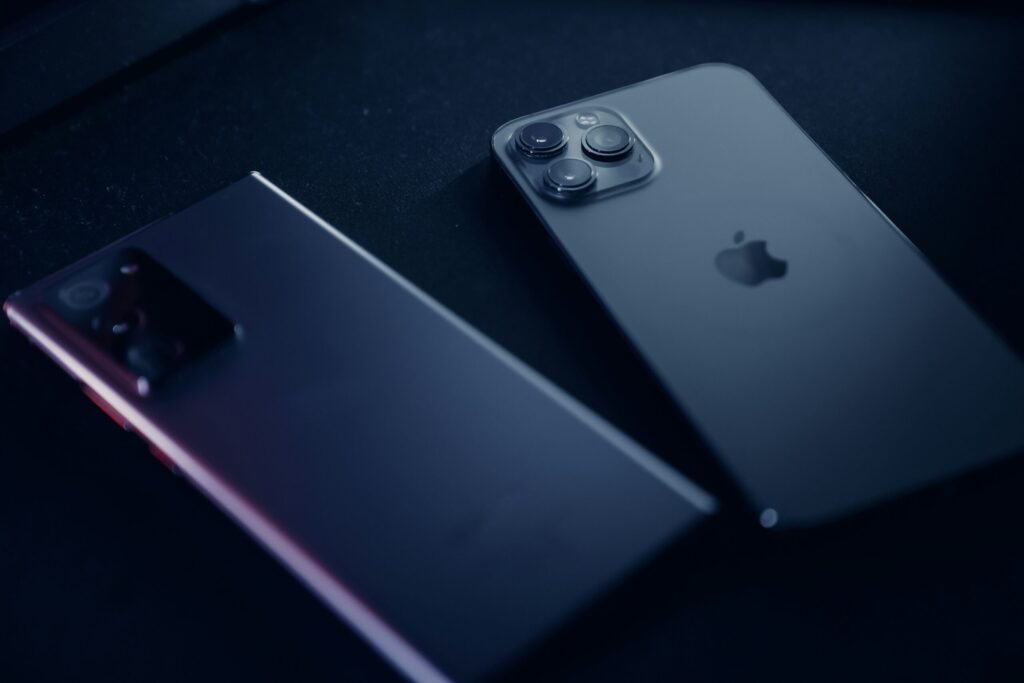
Switching between iPhone and Android?
Changing operating systems doesn’t mean you have to leave your contacts and photos behind.
For example, Google’s Android Switch can help transfer data from an iPhone to an Android device, while Apple’s Move to iOS app is designed to help people moving from Android to iPhone.
What if only some contacts transferred?
This is where things can get confusing. Your contacts may not all be stored in the same place. Some could be saved to your Google Account or iCloud, while others may be stored locally on your old phone or even on your SIM card.
You can manually import your contacts stored on your SIM card to your phone storage or cloud account to make this process smoother.
To import contacts on iOS: Open your Settings, scroll down and tap “Contacts.” Scroll further down and tap on “Import SIM contacts”
To import contacts on Android: Open the Contacts app, tap Fix and manage and select Export contacts. Choose your SIM card or device storage as the source and save the file to your phone.
Give yourself a little time before saying goodbye to your old phone
Transferring your data is usually straightforward when you prepare first. Back up your old phone, use the transfer tools built into your devices and, most importantly, check that everything has arrived before wiping your old phone.
Once your contacts, photos and other important data are safely on your new device, you can enjoy the best part of getting a new phone – actually using it.
Looking for your next smartphone? Explore Vodacom’s latest devices and find a phone that fits your needs.
Browse our latest stories to experience tech made easy.